TotalMix FX Control
Stream Deck plugin for TotalMix FX — documentation
Setup
After installing, the plugin’s actions appear in Stream Deck’s action list under TotalMix FX Control. The plugin talks to TotalMix over OSC, which has to be switched on in TotalMix’s settings.
TotalMix offers four Remote Controllers; the plugin uses one per protocol:
| Remote Controller | Mode | Ports (incoming / outgoing) | |
|---|---|---|---|
| Classic actions | 1 | classic (default) | 7001 / 9001 |
| Global OSC actions “(TotalMix 2.1+)” | 2 | Global OSC | 7002 / 9002 |
Set up whichever family you intend to use, both only if you want both. Open Options → Settings… → OSC in TotalMix.
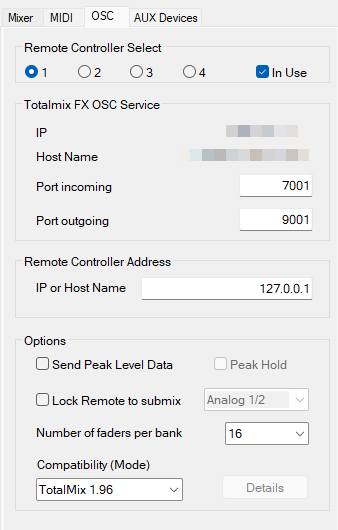
Global OSC (TotalMix FX 2.1+)
- Tick In Use on Remote Controller 2.
- Enter
127.0.0.1in Remote Controller Address. That means “this computer”; if Stream Deck runs on a different machine, enter that machine’s IP address instead. - Leave the ports at incoming 7002 / outgoing 9002, which are the plugin’s defaults.
- Set Compatibility (Mode) to Global OSC.
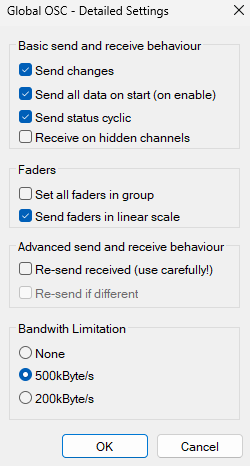
- Click Details and enable at least Send changes and Send status. Send faders in linear scale and Send all data on start (enable) are supported and recommended.
- Tick Send Level Messages for peak meters on the fader strips and the Display action; without it, the meters stay empty.
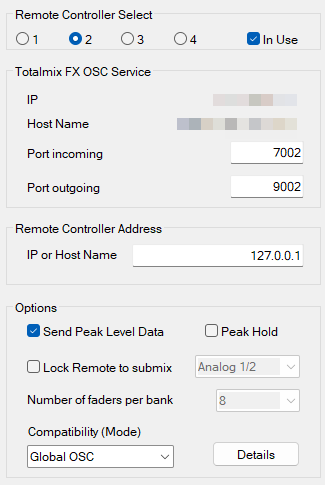
Classic OSC (TotalMix FX 1.96 to 2.0, or the classic actions)
- Tick In Use on Remote Controller 1.
- Enter
127.0.0.1(or the Stream Deck machine’s IP) in Remote Controller Address. - Leave the ports at incoming 7001 / outgoing 9001.
- Set Number of faders per bank to your interface’s channel count. The plugin can only read as many channels as this allows.
- Leave Send Level Messages off, the classic actions don’t use meters.
Finish, for either
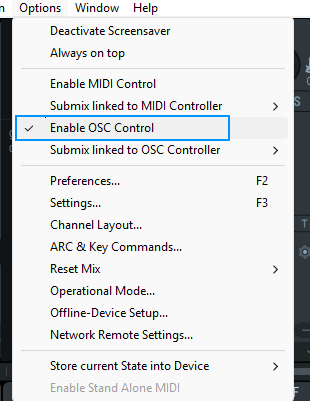
- Tick Enable OSC Control in TotalMix’s Options menu.
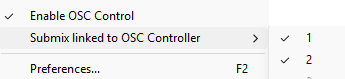
- Classic actions: make sure Submix linked to OSC Controller (Options menu) is ticked for the classic Remote Controller.
- Global OSC actions: untick Submix linked to OSC Controller for the Global OSC Remote Controller. From TotalMix FX 2.1 beta 6 on, TotalMix ignores the option for a Global OSC controller and this step is not needed.
- When Windows or macOS asks whether TotalMix and the Stream Deck plugin may use the network, allow it. A blocked firewall prompt is the most common reason for “nothing happens”.
No additional software is needed.
If your ports or host are different
Every button carries its own connection settings under Connection in its settings panel (the panel on the right when the key is selected in Stream Deck). Open any action’s settings and expand Defaults for new buttons. Host, ports and dB-per-step set there are copied into each button as you add it. They live in Stream Deck’s own storage, so they survive plugin updates.
- Changing a default does not move buttons already on your deck; they keep the connection they were created with, so buttons on different Remote Controllers can coexist.
- The classic and the Global OSC actions keep separate defaults, because they address separate controllers.
- TotalMix can run on another computer: set its IP address as the host and allow the connection through any firewall in between.
- Every Remote Controller needs its own pair of ports. The plugin listens on the controller’s outgoing port; if two buttons name the same outgoing port for different controllers, say both 9001, the plugin logs a “port already in use” message naming the port. TotalMix itself listens on the incoming port, which must also differ between controllers.
Using both plugins (coming from v3)
Stream Deck treats this as a separate plugin from v3, so both install side by side, but they cannot share Remote Controllers. v3 uses controllers 1 and 2, and so does this one. If you want both active, move one to controller 3 or 4 and set the ports accordingly under Connection or Defaults for new buttons. Otherwise uninstall v3.
Buttons from v3 do not carry over. MIDI is gone, since OSC does everything it did and reports state back, so stay on 3.3.5 if you depend on it. The de.shells.totalmix.exe.config file is gone too, connection settings are per button now.